Click to accept
The person at the PC sees who is asking and clicks Accept or Deny, and can switch off control, files or the clipboard for that session.
Obsidian Remote lets your technicians see and control Windows PCs from the Windows app or straight from a browser, move files, open a terminal and get in unattended, through a server you run yourself. Every session is encrypted from one computer to the other, so the server in the middle never sees a screen, a keystroke or a file.
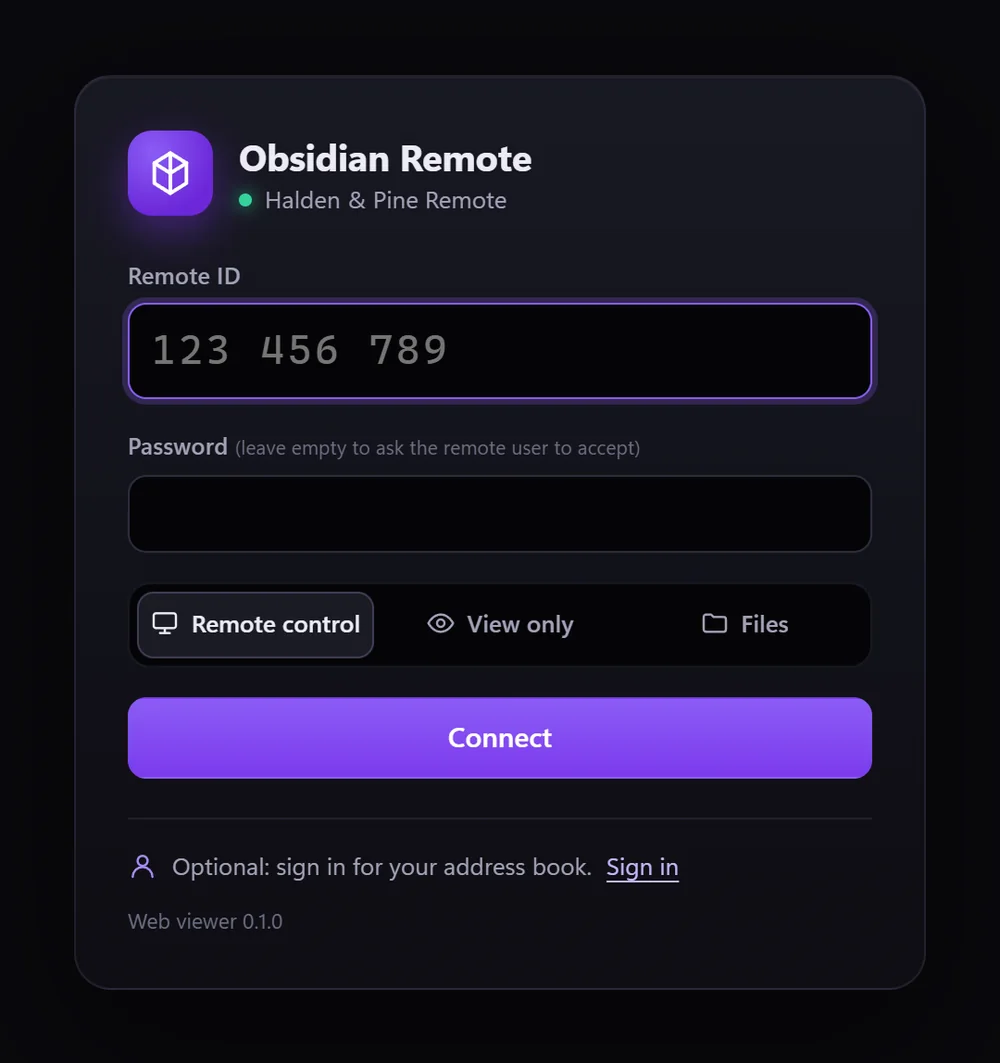
Type the PC's 9-digit ID and connect. Choose what the session is for; the person at the PC, or the password you set, decides whether you get in.
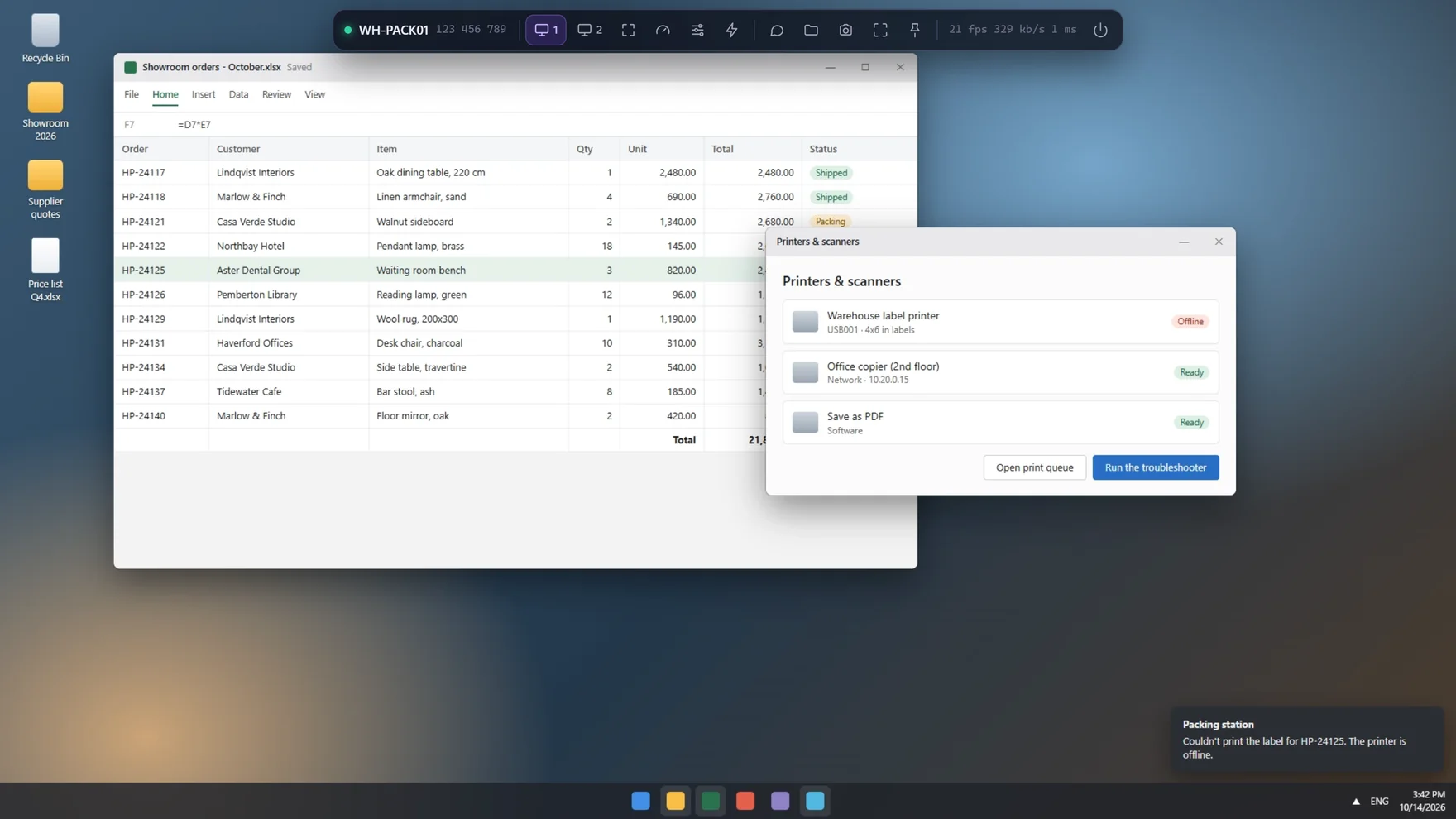
The screen in hardware-encoded H.264, every monitor, the remote cursor, and your keyboard and mouse. Win and Alt+Tab go to the remote PC.
A two-pane file manager: copy files either way, drag them in from Explorer or out to it, and a transfer that breaks off resumes where it stopped.
PowerShell or the command prompt on the remote PC, in a tab of its own, without taking over the screen.
Reach a port on the remote PC or its network through the session. One button opens Remote Desktop over it.
One window both lets people in and connects out. The left side is this PC: its ID and a one-time password that changes after every session. The right side reaches everyone else: recent PCs, favourites, your address book, PCs found on the local network, and every device on your server.

Every PC chooses how a technician is let in, and what they may do once inside. Change it on the PC, or set it for many PCs at once from the admin console.
The person at the PC sees who is asking and clicks Accept or Deny, and can switch off control, files or the clipboard for that session.
A one-time password that changes after each session, or a permanent one for PCs nobody sits at. The password itself never travels over the network.
A code from an authenticator app on top of the password, with "remember this PC" for the technicians you trust.
Installed as a Windows service, it works at the sign-in screen, the lock screen and administrator prompts, and the PC comes back online after a restart.
An allow-list of addresses, a disconnect after idle minutes, and permissions a policy turns off stay off.
Blank the remote PC's own screen while you work on something confidential, so nobody standing beside it can watch.
Your server also serves a viewer that runs in Chrome, Edge or Safari. Open its address, type the ID and the password, and you're in, from a borrowed laptop, a Mac or a tablet.
The server gives each PC its ID, introduces technicians to PCs, and relays the session when the two are on different networks. It is one program on one HTTPS port, with its own database and nothing else to install.

Every PC that registered: rename it, give it an owner and a group, wake it, reset its key, or disable it.
Technician accounts with two-factor sign-in, administrators, and groups that sort PCs and people.
Personal and shared lists of PCs with tags and notes. Saved passwords are encrypted on the server.
How PCs let people in, pushed from the console to every PC, a group or one device, and applied right away.
Who is connected to which PC right now, how much it relays, and a button to end any session.
Sessions, file transfers, sign-ins and admin changes, searchable and exported to CSV.
One installer for the whole PC, with your server built in through SERVER=, for Intune, Group Policy or your own tools.
On one LAN the app connects straight to the PC, with no relay. PCs on the network are found without typing an ID.
A certificate the server makes itself, pinned in every PC's settings, or one from your certificate authority.

The two computers in a session agree on keys only they hold. The server passes on encrypted data it has no key for, so even the people who run it can't see what happens in a session.
A fresh key exchange for every session, signed with the PC's own identity key, then AES-256 in each direction.
The viewer proves it knows the password without sending it, so a relay or a fake server learns nothing it could reuse.
A PC's ID belongs to the key it registered with. Another computer claiming that ID is refused, and the app shows the key's fingerprint so you can check it.
The code was reviewed for security before 0.1.0 and every finding was fixed. How it works.
The same server either way. The app on your PCs only needs to know its address.
Install the server on a small Linux machine of your own. Your sessions pass only through equipment you control, and you decide when to update.
DownloadWe run the server, its certificate, its updates and its backups. You manage your technicians and PCs in the same admin console.
Talk to usVersion 0.1.3. Installed PCs update themselves from our signed feed; the server updates from our signed repository.
Downloads ask for a user name and password. Ask us for access.
Installs for the whole PC with the service for unattended access. Needs administrator rights; add SERVER= to roll it out silently.
Unzip and run, for a one-off session or on a technician's own PC. It is reachable only while someone is signed in, and doesn't update itself.
Download the zipThe server, the admin console and the web viewer. Its screen shows an address and a setup code; the setup (name, network, first administrator) continues in a web browser. Installing it.
Start a server or a virtual machine from it. It asks for the network and the disk, and needs no internet connection to install.
Download the ISOA ready-made disk for a Generation 2 VM with Secure Boot. New-ObsidianRemoteVM.ps1 creates and starts the VM.
Deploy it in vSphere, or open it in Workstation or Fusion, choose the network and start it.
Download the OVAFor an existing Ubuntu Server 24.04 machine. Installing it also adds our signed update repository.
Download the .debPCs: 64-bit Windows 10 (version 1809 or later), Windows 11 or Windows Server 2019 or later. Server: 64-bit x86; the VM images start with 2 CPU cores, 2 GB of memory and a 32 GB disk. Other Linux with systemd: the server tarball (49.0 MB). SHA-256 checksums (signature, key; how to check)
To connect by ID, and to reach PCs on other networks, yes: the server is what gives PCs their IDs and relays sessions. Run it yourself on a small Linux machine, or ask us to host it. On one local network, the app can also connect straight to a PC's address without any server.
No. The two computers encrypt the session with keys only they hold. The server knows who connected to which PC, when and for how long, which is what the audit log shows, but never the screen, the keyboard, the clipboard or the files.
Yes. A window on the remote PC shows who is connected and what they may do, with a button to end the session. With click-to-accept nobody gets in until that person agrees.
When it is installed with the MSI, yes: it runs as a Windows service and works at the sign-in screen, the lock screen and administrator prompts, and you can send Ctrl+Alt+Del. The portable copy only works while someone is signed in.
No. Obsidian Remote is our own software, written in .NET, and it works the way RustDesk does: IDs, a server you run, and a relay for PCs on different networks. It doesn't connect to RustDesk clients or servers.
For now, yes. Our code-signing certificate is being issued, and until it is, Microsoft Defender SmartScreen may say it doesn't recognize the app. Choose More info, then Run anyway. Silent installs through management tools are not affected, and updates installed by the app are always signature-checked.
Not as an app yet. From a Mac, a Linux PC or a tablet you can connect with the web viewer in the browser. The PCs you connect to must run Windows.
It depends on the number of PCs and technicians. Contact us and we will tell you.
Obsidian Email Security keeps spam and phishing out of your users' inboxes, and Obsidian Mail Server gives them mail, calendars and contacts on a server you control.